UI Elements
Dropdown A highly customizable dropdown list
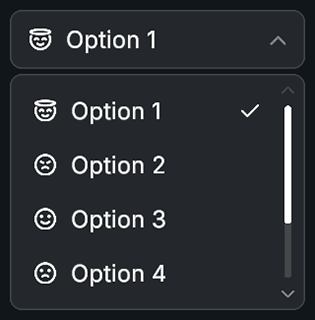
Dropdown displays a list of selectable items inside an animated panel. It supports icons, auto positioning based on screen space, and multiple animation types such as fade, scale, and slide.
The dropdown's header is essentially a button, which can be found under Dropdown Object -> Header Button . You can select this object and customize it as needed. You can also access it via script using dropdown.headerButton and make use of all the button features.
Locate the default item prefab in the References foldout
Open the prefab and customize it as needed
You can create different item prefabs and use them on different dropdowns. To create a new item prefab:
Locate the default item prefab in the References foldout
Duplicate the prefab (this is the fastest way to customize)
Open the new prefab and customize it to your liking
Name Type Description selectedIndexintIndex of currently selected item itemsList<Item>List of dropdown items
Name Type Description itemSpacingintVertical spacing between item buttons itemHeightfloatHeight of each item button paddingRectOffsetInner padding of the items area
Name Type Description scrollbarPositionScrollbarPositionScrollbar positioning method maxHeightfloatMaximum scroll view height blockUIWhileOpenboolCreates a fullscreen blocker behind dropdown closeOnItemSelectboolCloses dropdown on item selection closeOnClickOutsideboolCloses dropdown when clicking outside rotateArrowboolRotates arrow when dropdown opens arrowRotationfloatRotation applied when open
Name Type Description animationTypeAnimationTypeFade, Scale, or Slide animationDurationfloatDuration of open and close animations animationCurveAnimationCurveControls easing behavior
Name Type Description itemPrefabGameObjectPrefab for item entries itemParentTransformParent transform for item objects headerButtonButtonHeader button controlling open and close headerArrowImageArrow graphic on header (optional) scrollRectScrollRectScroll view containing items canvasGroupCanvasGroupControls visibility and fading
Name Type Description onItemSelectedUnityEvent<int>Called when an item is selected onOpenUnityEventCalled when dropdown opens onCloseUnityEventCalled when dropdown closes
Name Parameters Description Toggle()None Opens or closes dropdown Open()None Opens dropdown with animation Close()None Closes dropdown with animation UpdateUI()None Updates header and layout SelectItem(index, triggerEvents)int, boolSelects item at index SelectItem(item, triggerEvents)Item, boolSelects item by reference SelectItem(label, triggerEvents)string, boolSelects item by label AddItem(item, generate)Item, boolAdds item optionally generating UI AddItem(label, icon, generate)string, Sprite, boolAdds item by label and icon AddItems(newItems)params Item[]Adds multiple items AddItems(labels)params string[]Adds multiple string items RemoveItem(index)intRemoves item at index RemoveItem(label)stringRemoves item by label ClearAllItems()None Removes all items SortAlphabetically(ascending)boolSorts items
using UnityEngine ; using Evo . UI ; public class DropdownExample : MonoBehaviour { public Dropdown dropdown ; void Start () { // Add item dropdown. AddItem ( "New Item" ); // Add item with icon Sprite myIcon = null ; dropdown. AddItem ( "New Item" , myIcon); // Add items dropdown. AddItems ( "Option A" , "Option B" , "Option C" ); // Remove items dropdown. RemoveItem ( "Item Label" ); // using label dropdown. RemoveItem ( 0 ); // using index // Open event dropdown.onOpen. AddListener (() => { Debug. Log ( "Dropdown opened" ); }); // Close event dropdown.onClose. AddListener (() => { Debug. Log ( "Dropdown closed" ); }); // Select event dropdown.onItemSelected. AddListener ( index => { Debug. Log ( "Selected index: " + index); }); // Manually select item dropdown. SelectItem ( 1 ); // Open dropdown dropdown. Open (); // Set header text or sprite icon dropdown.headerButton. SetText ( "Select an item" ); dropdown.headerButton. SetIcon ( null ); } }