
Styler
Update your project's entire look in seconds
What is Styler?
Styler is Evo UI's modular customization system that centralizes your global styling. It allows you to define how your UI should look across the entire project by using preset assets and applying them through components. With Styler, you can:
- Update colors, fonts, sprites, and audio clips globally
- Enforce consistent visual rules across every UI element
- Instantly preview style changes without modifying objects
How does it work?
Styler works by pairing a Styler Preset (theme data) with Styler Object (theme receiver).
When changes happen inside a preset, every Styler Object referencing it updates automatically.
Styler Preset
Click here to jump to the Styler Preset section.
Styler Object
Click here to jump to the Styler Object section.
Styler Preset
This is a ScriptableObject that contains your theme values. A preset stores:
- Audio clips
- Colors
- Fonts
- Gradients
- Sprites
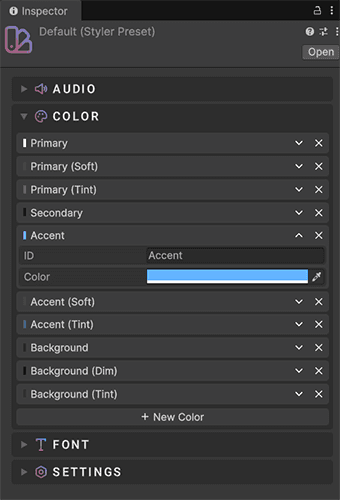
You can access the default Styler Preset by navigating through Tools -> Evo UI -> Open Default Styler, or by pressing Control + Shift + M.

The default preset should always be located at: /Resources/Styler Presets/Default.
Creating a Preset
Presets can be created from the Project window and edited like any other asset. You can also duplicate them to quickly create theme variations, such as Light, Dark, or High Contrast versions.
Click to the "+" icon or right click in the Project window
Select Create -> Evo -> UI -> Styler Preset
Start customizing it
Styler Object
The Styler Object component applies a preset to the attached UI element.
It supports styling for:
- Graphic (Image, RawImage, ProceduralRect, etc.)
- Image (Sprite)
- TMP Text
- Image Gradient
- Interactive components (Button, Switch, etc.)
You can disable global styling by:
- Enabling Use Custom Color option
- Removing the component entirely
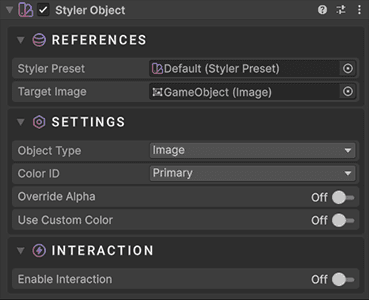
Adding Styler Object
You can use the same preset for every object, or you can mix different presets across different objects if needed. To create the component:
Select a GameObject and click "Add Component"
Search for Styler Object and add the component
Alternatively, you can find it under the Evo -> UI section
Choose type (Graphic or TMPText) and set color or font ID
Interaction
Styler Object can hook into an Interactive component to automatically update colors based on state. This allows your styled buttons to automatically theme themselves when hovered, pressed, or disabled.
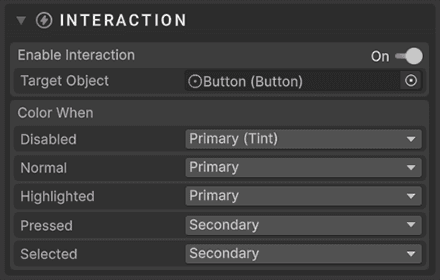
While you can use Styler IDs for color states, you can also enable the Use Custom Color option and override the state colors.
Styler Browser
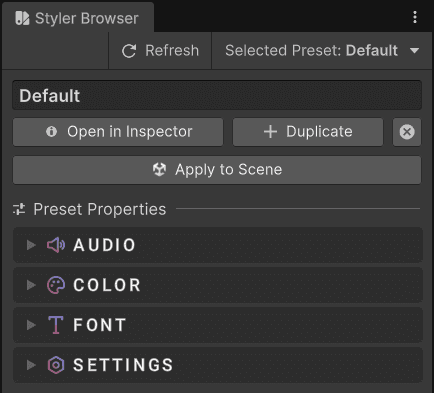
Styler Browser is a dedicated editor window for managing and applying your presets efficiently. You can open it via Tools -> Evo UI -> Open Styler Browser.
- Managing: Create, duplicate, rename, or delete presets directly from the list.
- Apply to Scene: Instantly applies the selected preset to all supported objects in the open scene (including standard Styler Objects and custom elements like Pie Charts).
- Apply to Selection: Applies the preset only to the currently selected GameObject (StylerObject or IStylerHandler).
Global Swapping
You can swap the active preset for every object in the scene at runtime using the Styler class. This is ideal for implementing theme selectors (e.g., Light Mode vs Dark Mode).
using UnityEngine;
using Evo.UI;

public class ThemeManager : MonoBehaviour
{
    public StylerPreset darkTheme;
    public StylerPreset lightTheme;

    public void SetDarkTheme()
    {
        // Updates all IStylerHandler objects (including StylerObject)
        Styler.ApplyPreset(darkTheme);
    }

    public void SetLightTheme()
    {
       // Updates all IStylerHandler objects (including StylerObject)
        Styler.ApplyPreset(lightTheme);
    }
}
Scripting
You can trigger StylerPreset and StylerObject methods directly from your scripts. This allows you to add new colors, fonts, and audio clips.
Styler Preset
using UnityEngine;
using Evo.UI;

public class StylerPresetExample : MonoBehaviour
{
    public StylerPreset preset;

    void Start()
    {
        // Get items
        AudioClip clickSound = preset.GetAudio("Item ID");
        Color accentColor = preset.GetColor("Accent");
        TMP_FontAsset newFont = preset.GetFont("Regular");

        // Add items
        preset.AddColor("Warning", accentColor);
        preset.AddAudio("Error SFX", clickSound);
        preset.AddFont("Header", newFont);

        // Set items
        preset.SetColor("Warning", Color.yellow);
        preset.SetAudio("Error SFX", clickSound);
        preset.SetFont("Header", newFont);

        // Remove items
        preset.RemoveColor("Warning");
        preset.RemoveAudio("Error SFX");
        preset.RemoveFont("Header");
    }
}
Styler Object
using UnityEngine;
using Evo.UI;

public class StylerObjectExample : MonoBehaviour
{
    public StylerObject stylerObject;
    public StylerPreset preset;

    void Start()
    {
        // Assign a preset at runtime
        stylerObject.Preset = preset;

        // Set object type
        stylerObject.objectType = StylerObject.ObjectType.Graphic;

        // Assign color ID from preset
        stylerObject.colorID = "Primary";

        // Optional font ID (for TMP text)
        stylerObject.fontID = "Regular";

        // Override alpha if needed
        stylerObject.overrideAlpha = true;
        stylerObject.overrideAlphaValue = 0.7f;

        // Enable custom color (bypass Styler color)
        stylerObject.useCustomColor = true;

        // Update to apply changes
        stylerObject.UpdateStyler();
    }
}