
Button
A feature rich button built on top of Interactive base
Overview
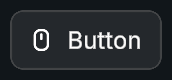
Button extends Interactive and provides a complete UI button solution with icon support, text rendering, adaptive layout, and double click handling. It manages Sprite + Text combinations, dynamic layout sizing, and integrates fully with Interactive's ripple, trail, audio, and state systems.
Customization
Content
By default, the icon and text are set through the inspector so you can edit them easily. If you want to manage the content manually, enable the Use Custom Content option in the button settings.
Dynamic Scale
Buttons automatically adjust their size based on the content. If you prefer to control the size yourself, you can disable the Dynamic Scale option.
Transition Effects
Interactive components support state based transitions through the Styler Object system. This includes color changes on hover, click, and other interactions. For more information, see the Styler page.
Interactive Features
As a child of Interactive, Button supports:
- Interaction states
- Ripple and trail effects
- Audio styling
- Highlight, pressed, and selected transitions
For more information, see the Interactive page.
Properties
Content
| Name | Type | Description |
|---|---|---|
enableIcon | bool | Shows or hides the icon |
icon | Sprite | Sprite used for the icon |
iconSize | float | Preferred size for the icon |
enableText | bool | Enables or disables the text label |
text | string | Displayed button label |
textSize | float | Font size of the label |
Layout
| Name | Type | Description |
|---|---|---|
dynamicScale | bool | Uses ContentSizeFitter and LayoutGroup to auto size |
reverseArrangement | bool | Flips the order of icon and text |
spacing | int | Space between icon and text |
padding | RectOffset | Padding applied by the layout group |
Settings
| Name | Type | Description |
|---|---|---|
interactable | bool | Enables or disables Selectable interaction |
interactionState | InteractionState | Current visual interaction state of the button |
TransitionDuration | float | Time used when fading between CanvasGroup states |
customContent | bool | Enables manual setup, skipping automatic icon/text logic |
allowDoubleClick | bool | Enables double click event |
doubleClickDuration | float | Time window for second click detection |
References
| Name | Type | Description |
|---|---|---|
imageObject | Image | Image object which the button icon will be applied to |
iconElement | LayoutElement | Layout sizing for icon |
textObject | TMP_Text | Text object which the button text will be applied to |
textContainer | RectTransform | Parent container for text |
contentFitter | ContentSizeFitter | Handles automatic/dynamic layout scaling |
contentLayout | HorizontalLayoutGroup | Manages icon/text layout adjustments |
Visual Effects
| Name | Type | Description |
|---|---|---|
enableRipple | bool | Enables ripple feedback on pointer down or submit |
rippleParent | RectTransform | Parent used when spawning ripple instances |
ripplePreset | Ripple.Preset | Preset that defines ripple shape, color, size, and timing |
enableTrail | bool | Enables pointer trail while hovering the button |
trailParent | RectTransform | Parent used when spawning trail handlers |
trailPreset | PointerTrail.Preset | Preset that defines trail shape, color, scale, and fade settings |
Sound Effects
| Name | Type | Description |
|---|---|---|
sfxSource | StylingSource | Defines how audio clips are resolved (for example from Styler presets) |
stylerPreset | StylerPreset | Preset used by Styler to fetch audio and styling data |
highlightedSFX | AudioMapping | Audio mapping used when the button becomes highlighted or hovered |
pressedSFX | AudioMapping | Audio mapping used when the button is pressed or submitted |
selectedSFX | AudioMapping | Audio mapping used when entering the Selected state |
Events
| Name | Type | Description |
|---|---|---|
onClick | UnityEvent | Fired on pointer click or submit |
onPointerDown | UnityEvent | Fired when pointer is pressed |
onPointerUp | UnityEvent | Fired when pointer is released |
onDoubleClick | UnityEvent | Fired when double click logic is triggered |
onPointerEnter | UnityEvent | Fired on hover start |
onPointerExit | UnityEvent | Fired on hover exit |
onSelect | UnityEvent | Fired when element is selected |
onDeselect | UnityEvent | Fired when element is deselected |
onSubmit | UnityEvent | Fired when submit is performed (keyboard/controllers) |
Public Methods
| Name | Parameters | Description |
|---|---|---|
UpdateUI() | None | Refreshes icon, text, and layout |
UpdateLayout() | None | Refreshes layout group values |
SetIcon(newIcon) | Sprite | Updates icon sprite and layout behavior |
SetText(newText) | string | Updates label text and font size |
SetState(state, instant) | InteractionState, bool | Sets new interaction state with optional instant transition |
SetInteractable(value) | bool | Toggles interactable and updates visuals |
Code Example
using UnityEngine;
using Evo.UI;

public class ButtonExample : MonoBehaviour
{
    public Button myButton;

    void Start()
    {
        // Button visuals
        myButton.enableIcon = true;
        myButton.iconSize = 32f;
        myButton.SetIcon(someSprite);

        myButton.enableText = true;
        myButton.textSize = 26f;
        myButton.SetText("Play");

        // Layout settings
        myButton.dynamicScale = true;
        myButton.spacing = 10;
        myButton.reverseArrangement = false;

        // Update layout changes
        myButton.UpdateLayout();

        // Force update UI changes - no need to be called with SetIcon, SetText
        myButton.UpdateUI();

        // Double click optional
        myButton.allowDoubleClick = true;

        // Interactive effects
        myButton.enableRipple = true;
        myButton.enableTrail = true;

        // Add event listeners
        myButton.onClick.AddListener(() =>
        {
            Debug.Log("Button clicked!");
        });

        myButton.onDoubleClick.AddListener(() =>
        {
            Debug.Log("Button double clicked!");
        });

        // Set button state
        myButton.SetState(InteractionState.Normal);

        // Set interactable state
        myButton.SetInteractable(true);
    }
}