
Quick Start
Learn the basics and get Evo UI up and running
Compatibility
First of all, make sure that the requirements are met.
Fully compatible with:
✅ Unity 6 (6000.x)
✅ Unity 2022.3
Not supported:
🟥 Unity 2022.2 and earlier
Dependencies
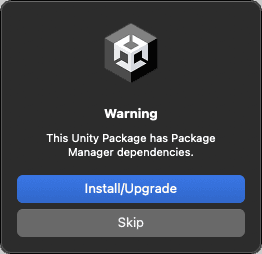
Evo UI is built on top of uGUI and TextMesh Pro, so it requires the 2D Sprite and Unity UI packages to be installed. When importing the package, Unity will display a popup indicating missing dependencies. You can press Install/Upgrade to automatically import them.
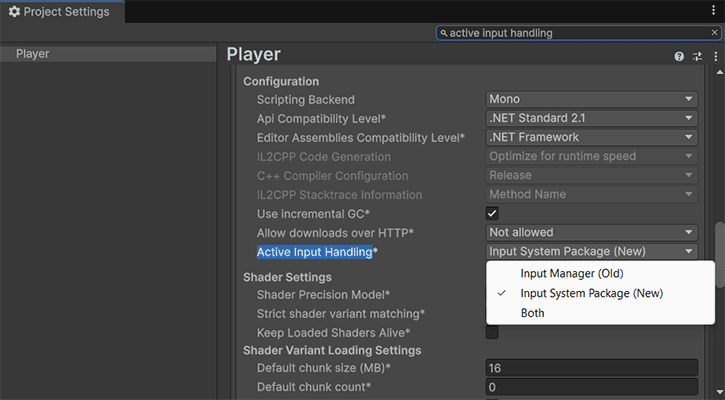
If you prefer using the old input system, make sure to set the input setting in Project Settings -> Player -> Active Input Handling accordingly.
Creating Content
UI Elements
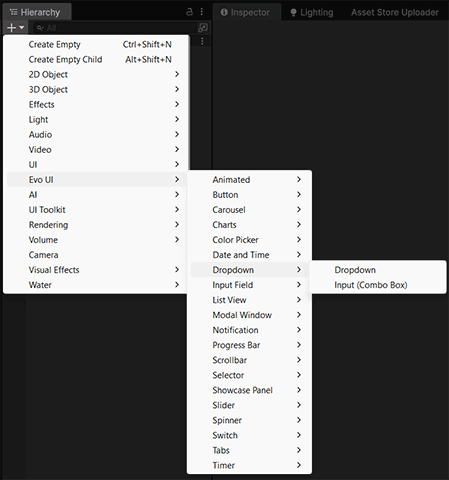
You can use the built-in Create menu to add new elements designed for Evo UI. You can also right-click in the Hierarchy or on any object to access the same menu.
UI Components
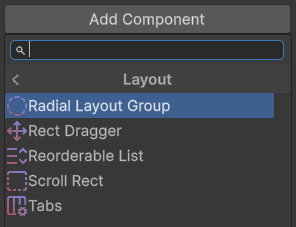
Select an object and click the Add Component button. From there, you can either open the Evo -> UI section or search directly for the component you need.
Customization
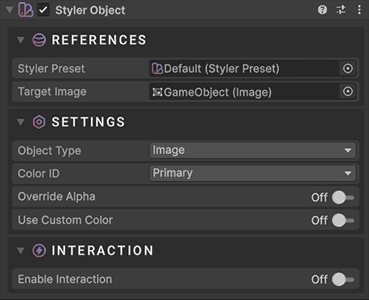
By default, Evo UI is configured to work with Styler. If you prefer manual customization, you can disable Styler on selected objects. You can also mix both approaches, using Styler for some objects while editing others manually.
Styler
Styler is Evo UI's modular customization system that centralizes your global styling. You can:
- Update colors, fonts, gradients, sprites, and audio clips globally
- Enforce consistent visual rules across every UI element
- Instantly preview style changes without modifying objects
For more information, please see the Styler page.
Manual
For classic manual editing, just select the object or component and adjust its properties, such as changing an image's color or assigning a new component.
For objects that rely on Styler, you must either remove the Styler Object component or enable one of the Use Custom options to override its values.
Specific Elements
For customization details on specific components, please refer to their dedicated documentation pages, as customization behavior may vary depending on the object.
Docs Shortcut
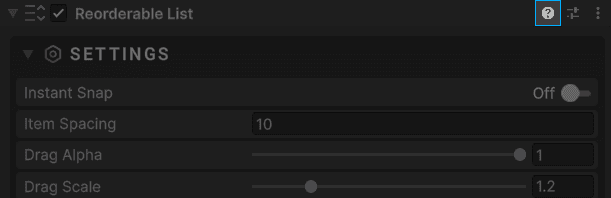
You can click the Help icon to open the documentation page for that specific component.
Explore Further
Evo UI uses Unity's UI system (uGUI), and it is highly recommended that you are familiar with it to get the most out of the package. Click here to see the official documentation page.
Now go ahead and explore the documentation. You can start with these:
Frequently asked questions
Check out the commonly asked questions.
Tips
See tips about the package, as well as Unity UI.