
Tips
Tips about the package and Unity UI
Documentation Shortcut
You can click the Help icon to open the documentation page for that specific component.
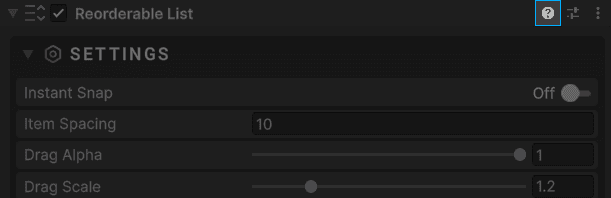
Styler Recommendations
You can create multiple Styler presets and apply them to different objects.
For example, you can create alternative presets designed for players with color blindness, and apply the preset when the player enables a color-blind mode in your game.
Icon Browser
Since there are hundreds of icons included, finding the right sprite manually can be time consuming.
To browse icons more easily, use the Icon Selector window:
Tools -> Evo UI -> Open Icon Selector
Dynamic Scale on Buttons
Dynamic Scale makes the button object adapt to content, but:
- Disable it if you want fixed-size buttons
- Disable if you're using the button inside a layout group
- Enable it for auto-growing text labels
Updating Package
After updating the asset and clicking the Import button through the Unity Package Manager, make sure to double-check the import dialog.
You can uncheck any files you have modified (such as custom Styler Presets). If you import everything blindly, Unity may overwrite your changes. This is especially important if:
- You edited the default Styler Preset
- You modified icons or presets inside the Resources folder
Disabling Custom Editor GUI
While not recommended, you can disable the custom editor GUI by toggling Tools -> Evo UI -> Disable Custom Editor.
This can be useful if you plan to modify the source code and do not want to deal with the editor code. You can enable or disable it at any time.