
FAQ
Frequently asked questions and guides
How to Open Styler
You can access the default Styler Preset by navigating to Tools -> Evo UI -> Open Default Styler, or by pressing Control + Shift + M.

Disable Styler on Specific Objects
If you want full manual control over an object's color or font, disable or remove the Styler Object component.
Select the object
Remove the 'Styler Object' component
Alternatively, you can keep Styler Object but enable settings like Use Custom Color to override the preset.
You can always add Styler Object back or use it with custom objects.
Managing UI Audio
Certain UI elements, such as buttons, play sound effects using assigned audio clips. If you want to customize the audio source, simply add the Audio Manager component to any object in your scene (or to an object in DontDestroyOnLoad). The component will automatically add an AudioSource that can be configured as needed.
If no component is present, Evo UI will automatically create an AudioManager at runtime when any of its methods are called. You can access AudioManager at runtime through its singleton anytime:
Evo.UI.AudioManager.Instance.AudioSource.volume = 0.5f;Button Transition Workflow
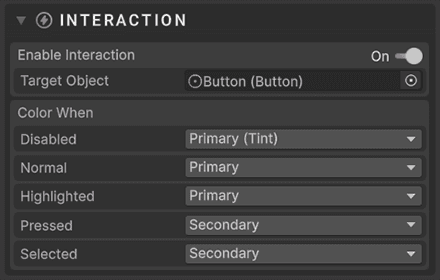
Interactive transitions such as hover, press, and selected states are handled by the Styler Object components attached to elements like text, icons, and backgrounds.
These components listen to the button's current interaction state and update colors based on the assigned Styler Preset.
For more information, see this section.
Changing Border Radius
Most UI elements (e.g., Button) use sliced sprites, which allow you to adjust the border radius through the Pixels Per Unit Multiplier parameter. Select an Image component (such as a button background) and change this value as needed.
Make sure that Image Type is set to Sliced. You can also assign different sliced sprites available under the Evo UI -> Sprites -> Borders folder.
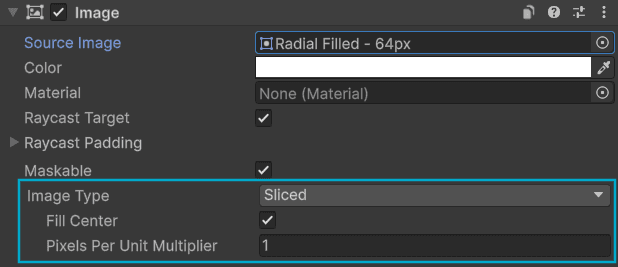
Most images use a value of 4, but the inner border may vary depending on their padding.
Fixing Blurry Icons
If an icon appears blurry, it is usually caused by one of the following:
Low Resolution Sprite
Using a low resolution sprite on a large UI element will cause blurring.
You can select the sprite and increase its 'Max Size' setting. All icons in Evo UI can be sized up to 256x.
Canvas Scaling
Canvas Scaler settings may be stretching the icon.
Make sure your Canvas settings match your reference resolution.
Fixing Pixelated Icons
If an icon appears pixelated, it is usually caused by one of the following:
Low Resolution Preview
Your Scene view may be rendering at a reduced resolution, especially when using the editor scaling. In such cases, you can uncheck Low Resolution Aspect Ratios (available in the Game window under the resolution/aspect ratio dropdown).
Game Window Scale
If the game view scale is set to a value other than 1, the quality may decrease significantly, especially when it is higher than 1. To preview the native look, set the scale to 1. You can revert it to any value afterward if needed.
Small Rects
If you're rendering a high-resolution sprite on a small UI element, it may appear pixelated by default. To fix this, enable mipmaps in the texture import settings. In Evo UI, you can simplify this process using the custom editor tool: Tools -> Evo UI -> Sprite Optimizer.
UI Not Responding
Check Event System
Event System is probably missing in the scene. You can create it by navigating to Hierarchy -> Create -> UI -> Event System.
Still Not Working?
As of version 1.9, Fast Enter Play Mode support has been expanded and the "Do not reload Domain or Scene" option can also be used. The section blow applies to 1.8 and older versions.
If buttons or other interactive elements stop responding properly after entering Play Mode, this is likely caused by Unity's Enter Play Mode Settings.
Evo UI may not function properly with completely disabled Enter Play Mode Settings. However, you can to set it to Reload Scene, which will work almost the same as having it disabled.
Go to Edit -> Project Settings -> Editor and configure Enter Play Mode Options:
Option 1: Reload Scene (Recommended)
- Set Enter Play Mode Settings to Reload Scene
This provides fast iteration while keeping Evo UI fully functional.
Option 2: Default Behavior
- Set Enter Play Mode Settings to Reload Domain and Scene
This is the slowest but most reliable option.
These settings only affect the Unity Editor. Your builds are not affected.
UI Navigation Not Working
If keyboard or gamepad navigation does not respond, check the following:
- Ensure an EventSystem exists in your scene
- Selectables must be enabled and interactable
- Navigation mode should be set to Automatic or Manual
- If using Manual navigation, make sure Up/Down/Left/Right targets are assigned
- Assign a First Selected object in the EventSystem component
For more information, see the UI Navigation page.